
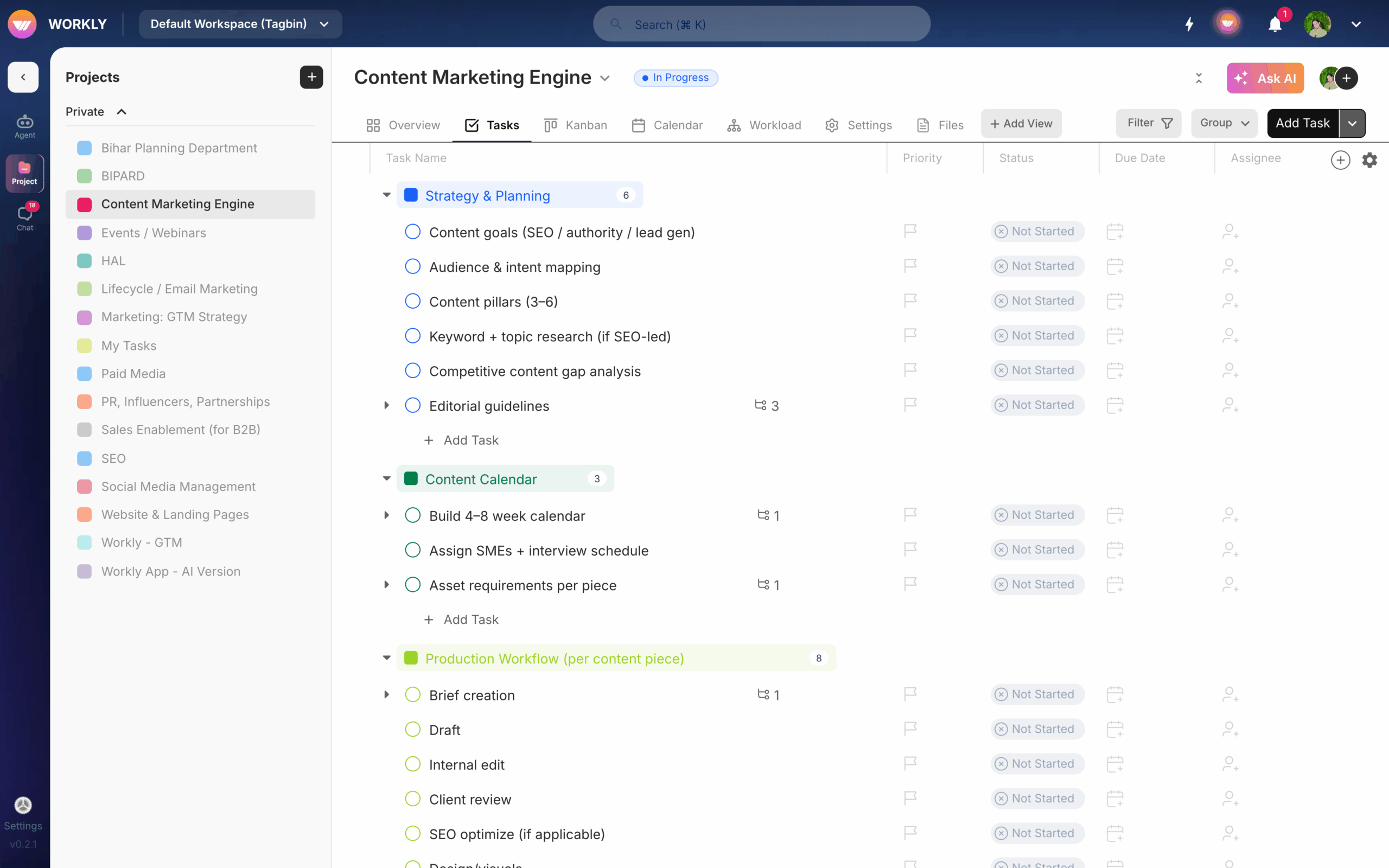
Tasks are the building blocks of every project in Workly. Each task represents a piece of work that needs to be done. You can assign tasks to team members, set deadlines, add details, and track progress from start to finish.
Create a task
There are several ways to create a task:
- Quick add — Click the + Add Task button at the bottom of any section or status column, type a task name, and press Enter
- Board view — Click + at the bottom of any column to add a task in that status
- List view — Click the add row at the bottom of the task list
Task details
Click any task to open its detail view. Here you can configure everything about the task:
- Title — Click to edit the task name
- Description — Add detailed notes, instructions, or context with rich text formatting
- Assignee — Assign the task to one or more team members
- Status — Set the current status (e.g. To Do, In Progress, Done)
- Priority — Set priority level (Low, Medium, High, Urgent)
- Due date — Set a deadline for the task
- Start date — Set when work should begin
- Tags/Labels — Add labels to categorise tasks
Subtasks
Break large tasks into smaller, manageable pieces using subtasks. To add a subtask:
- Open the parent task
- Click Add Subtask
- Enter the subtask name and press Enter
Subtasks have the same properties as regular tasks — you can assign them, set due dates, and track their status independently. The parent task shows a progress indicator based on how many subtasks are complete.
Activity and comments
Every task has an Activity tab that shows:
- Comments — Team members can leave comments, mention others with @, and have threaded discussions
- Activity log — An automatic history of all changes made to the task (status changes, assignee updates, etc.)
Use comments to discuss the task, share updates, or ask questions without leaving the task view.
File attachments
Attach files directly to tasks by:
- Clicking the Attachments tab in the task detail view
- Dragging and dropping files onto the task
- Pasting images from your clipboard
Attached files are accessible to all project members and can be previewed directly within Workly.
Custom fields
Add custom fields to tasks to track additional data specific to your workflow. Custom fields appear as extra columns in list view and as properties in the task detail view. Examples include text fields, numbers, dropdowns, and dates.
Sections
Organise tasks within a project using sections. Sections act as groups or categories — for example, you might create sections for different sprints, phases, or work areas. Add a section from the project settings or by clicking Add Section in the task list.
Filters and search
Find tasks quickly using the filter bar at the top of any project view. You can filter by:
- Assignee — Show tasks assigned to specific people
- Status — Filter by task status
- Priority — Filter by priority level
- Due date — Filter by date range
- Labels/Tags — Filter by specific labels
You can combine multiple filters and save custom filter views for quick access later. Use the search bar to find any task by name across all your projects.
Group by
In list view, you can group tasks by different properties using the Group By option. Group by status, assignee, priority, due date, or section to organise your task list in the way that works best for you.
Duplicate a task
To duplicate a task with all its details, right-click the task or use the task menu and select Duplicate. This creates a copy with the same title, description, and properties — useful for recurring work.
Learn more about creating and managing projects.
Frequently asked questions
How do I assign a task to someone in Workly?
Open the task detail view by clicking on the task, then click the Assignee field and search for the team member you want to assign. You can assign a task to one or more members. They’ll receive a notification about the assignment.
Can I add subtasks to break down larger tasks?
Yes, open any task and click Add Subtask. Each subtask can have its own assignee, due date, status, and priority. The parent task displays a progress indicator showing how many subtasks are complete.
How do I filter tasks by assignee or priority?
Use the filter bar at the top of any project view. Click the filter icon, select the property you want to filter by (assignee, status, priority, due date, or labels), and choose your filter criteria. You can combine multiple filters and save custom views.


