
Workly’s chat makes team communication fast and organised. This guide covers everything you can do in a conversation — from sending messages to sharing files and reacting with emoji.
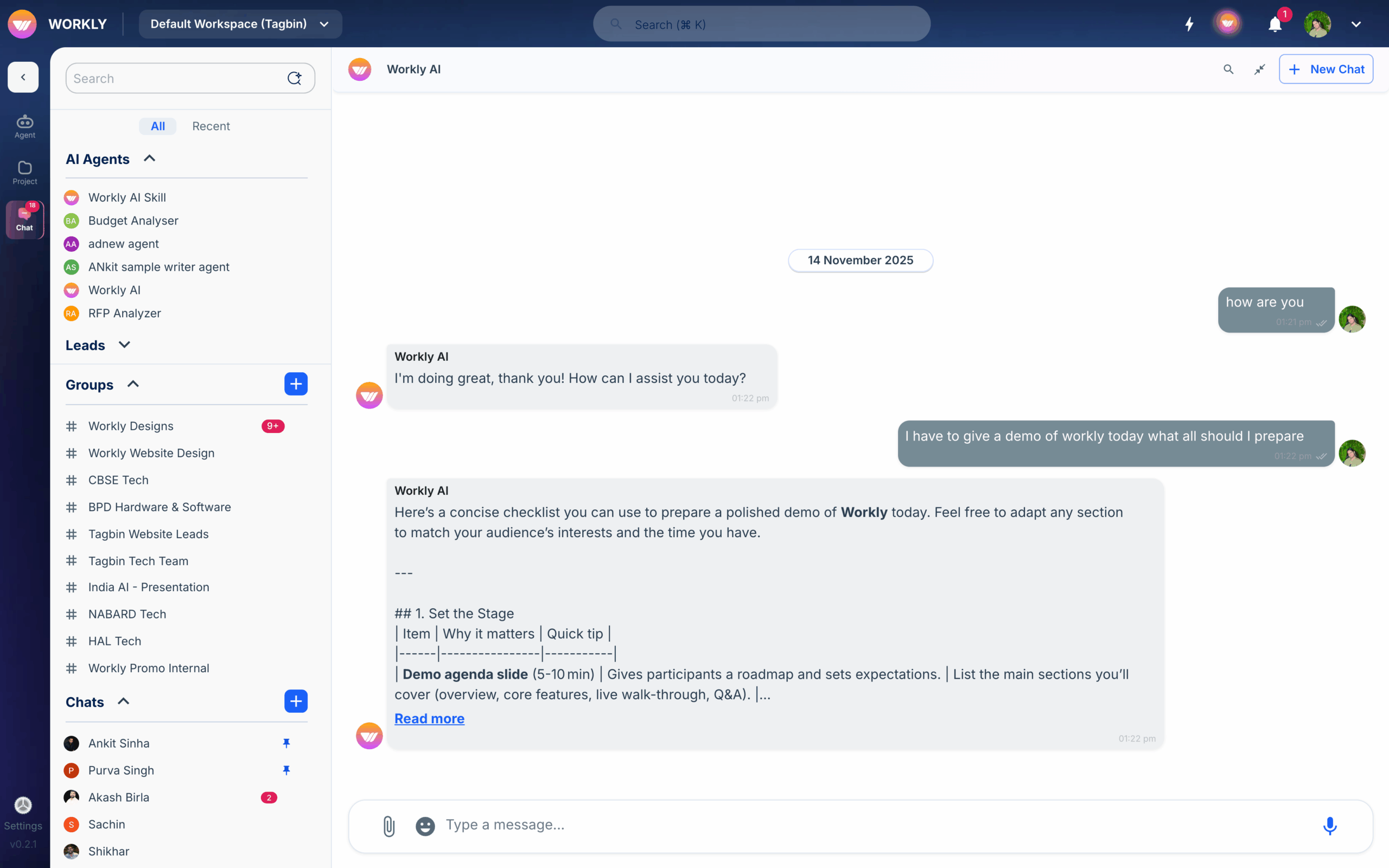
Send a message
Type your message in the input field at the bottom of any channel or direct message and press Enter to send.
Rich text formatting
Format your messages using:
- Bold — Wrap text in asterisks or use Ctrl+B
- Italic — Wrap text in underscores or use Ctrl+I
Code— Wrap text in backticks for inline code- Code blocks — Use triple backticks for multi-line code
- Links — Paste a URL and it will be automatically linked with a preview
Mentions
Type @ followed by a teammate’s name to mention them. They’ll receive a notification even if they have the channel muted. Mentions are highlighted in the message so they stand out.
Edit and delete messages
Hover over your own message and click the menu icon to:
- Edit — Modify the message text. Edited messages show an “edited” indicator.
- Delete — Remove the message permanently.
Reactions
React to any message with emoji. Hover over a message and click the emoji icon to open the reaction picker. Click any emoji to add your reaction. Multiple people can react with the same emoji — the count is shown next to it.
Threaded replies
Keep conversations organised by replying in a thread. Hover over a message and click Reply to start a threaded discussion. Threads keep side conversations from cluttering the main channel.
Pin messages
Pin important messages to the top of a channel for easy reference. Hover over a message and select Pin from the menu. View all pinned messages from the Pins tab in the channel header.
Forward messages
Forward a message to another channel or direct message. Select Forward from the message menu, choose the destination, and send.
Share files
Share files in any conversation by:
- Drag and drop — Drop files directly into the message input area
- Attachment icon — Click the paperclip icon to browse and select files
- Paste — Paste images from your clipboard directly into chat
Shared files show a rich preview with filename, size, and type. Images display inline previews. All shared files are searchable and available from the Files tab in the channel.
Frequently asked questions
How do I mention someone in a Workly message?
Type @ followed by the person’s name in the message input. A dropdown will appear with matching names — select the person to mention them. They’ll receive a notification about the mention.
How do I share a file in chat?
Drag and drop a file into the message area, click the paperclip/attachment icon to browse files, or paste an image from your clipboard. The file will be shared with a preview in the conversation.


