
The board view in Workly displays your tasks as cards organised in a Kanban-style layout. Tasks flow through columns that represent different statuses — giving you a clear visual picture of where every piece of work stands.
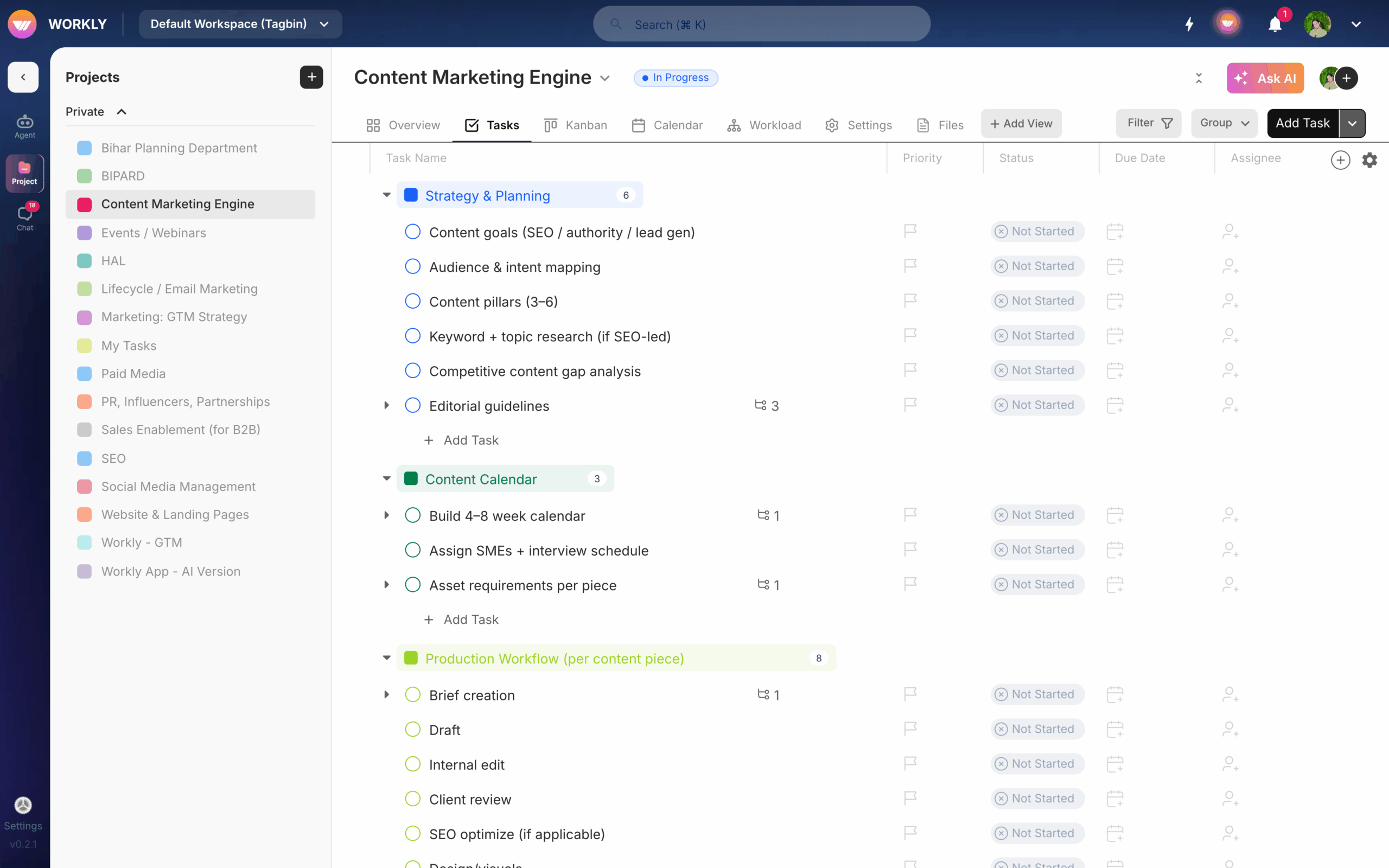
How the board works
Each column on the board represents a task status (e.g. To Do, In Progress, Review, Done). Tasks appear as cards within their current status column. The board gives you a visual overview of your project’s workflow at a glance.
Drag and drop
Move tasks between columns by dragging and dropping them. When you drag a task card from one column to another, its status updates automatically. This makes it quick and intuitive to update task progress without opening the task details.
Task cards
Each task card on the board shows key information:
- Task name
- Assignee avatar
- Priority indicator (colour-coded)
- Due date (if set)
- Subtask progress (if subtasks exist)
Click any card to open the full task detail view.
Add tasks from the board
Click the + button at the bottom of any column to add a new task directly in that status. Type the task name and press Enter — the task is created instantly in the chosen column.
Switch views
Toggle between board view, list view, and calendar view using the view tabs at the top of the project. Your tasks and data stay the same — only the visual layout changes.
Frequently asked questions
How do I move a task to a different status on the board?
Drag the task card from its current column and drop it into the target status column. The task’s status updates automatically when you release it.
Can I add a task directly to a specific status column?
Yes, click the + button at the bottom of any column to create a new task directly in that status. Type the name and press Enter.


