
Workly includes full-featured team messaging built directly into the platform. Instead of switching to a separate chat tool, you can communicate with your team right where you work — alongside your projects, tasks, and meetings.
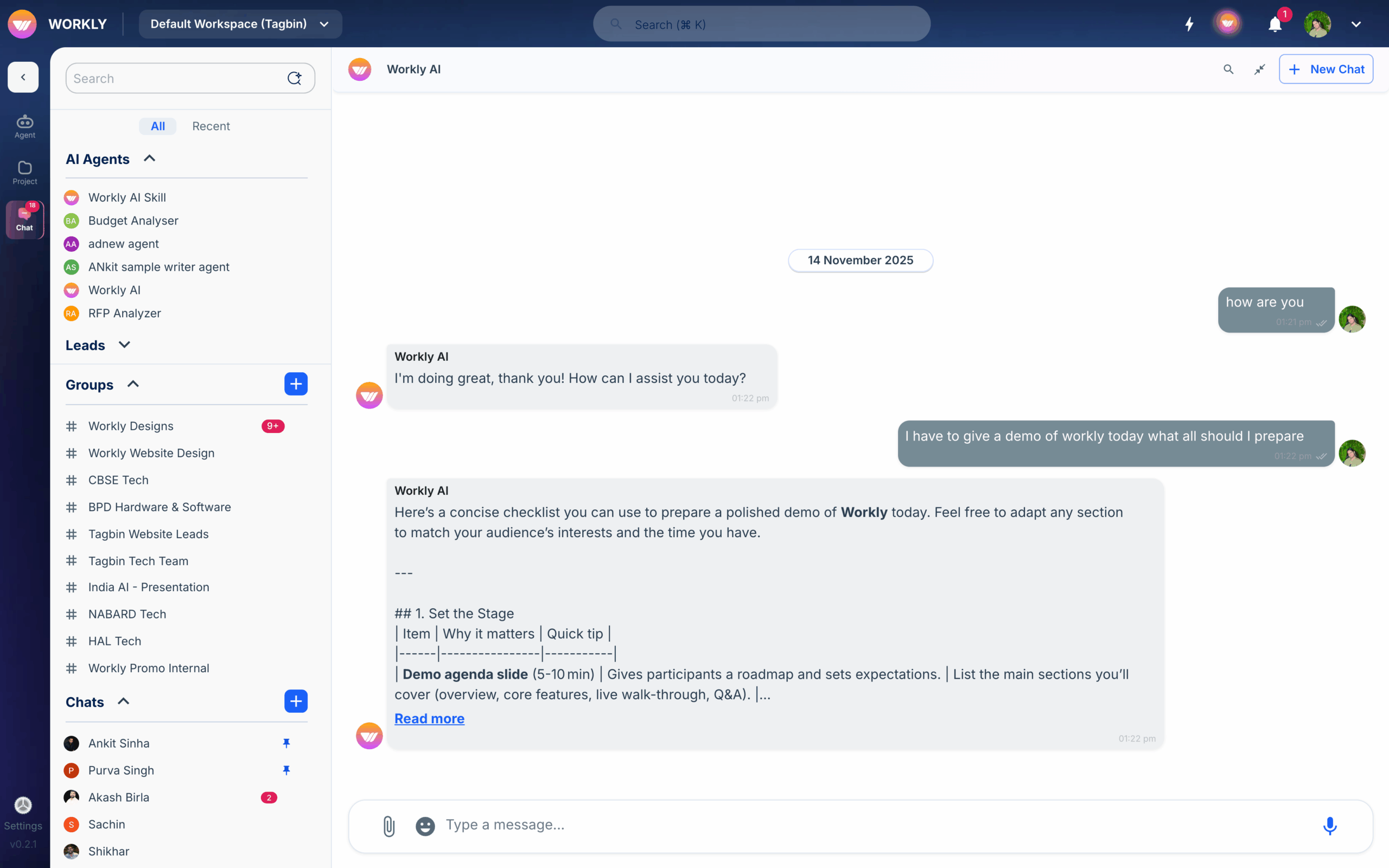
Channels
Channels are group conversations organised by topic, team, or project. They keep discussions focused and easy to find.
Create a channel
- Click the + icon next to the Channels section in the chat sidebar
- Enter a channel name (e.g. “marketing”, “engineering”, “product-updates”)
- Add an optional description
- Choose public (anyone in the workspace can join) or private (invite-only)
- Click Create
Join a channel
Browse available public channels and click Join to start participating. Private channels require an invitation from an existing member.
Channel members
View and manage channel members by clicking the Members icon in the channel header. You can add new members, and channel admins can remove members.
Direct messages
Direct messages (DMs) are private one-on-one conversations with any teammate. Click a person’s name in the sidebar or start a new DM from the + icon next to Direct Messages.
Sending messages
Type your message in the input field at the bottom of any channel or DM. Press Enter to send. Workly supports:
- Rich text — Bold, italic, strikethrough, code blocks, and links
- Mentions — Type @ followed by a name to mention someone and notify them
- Emoji — Use the emoji picker or type emoji shortcodes
- File attachments — Drag and drop files or click the attachment icon to share documents, images, and other files
Message actions
Hover over any message to access quick actions:
- React — Add emoji reactions to messages
- Reply — Start a threaded reply to keep discussions organised
- Pin — Pin important messages to the top of the channel for easy reference
- Edit — Edit your own messages after sending
- Delete — Delete your own messages
File sharing
Share files in any conversation by dragging and dropping them into the message input, or by clicking the attachment icon. Shared files include rich previews for images, documents, and links. All shared files are searchable and accessible from the channel.
Search
Use the search bar at the top of the chat to find any message across all your channels and DMs. Search by keywords, sender, or date to quickly locate past conversations.
Learn more about what Workly can do or explore meetings and video calls.
Frequently asked questions
How do I create a channel in Workly?
Click the + icon next to Channels in the chat sidebar, enter a channel name and optional description, choose public or private visibility, and click Create. Public channels can be joined by any workspace member, while private channels require an invitation.
Can I send direct messages to individual team members?
Yes, click any team member’s name in the sidebar or use the + icon next to Direct Messages to start a private one-on-one conversation. Direct messages are only visible to the two participants.
How do I search for past messages in Workly?
Use the search bar at the top of the chat interface. Type keywords to search across all your channels and direct messages. You can filter results by sender or date to narrow down your search.


