
Workly includes built-in video conferencing so your team can meet face-to-face without switching to another tool. Start a call instantly or schedule meetings in advance — all within your workspace.
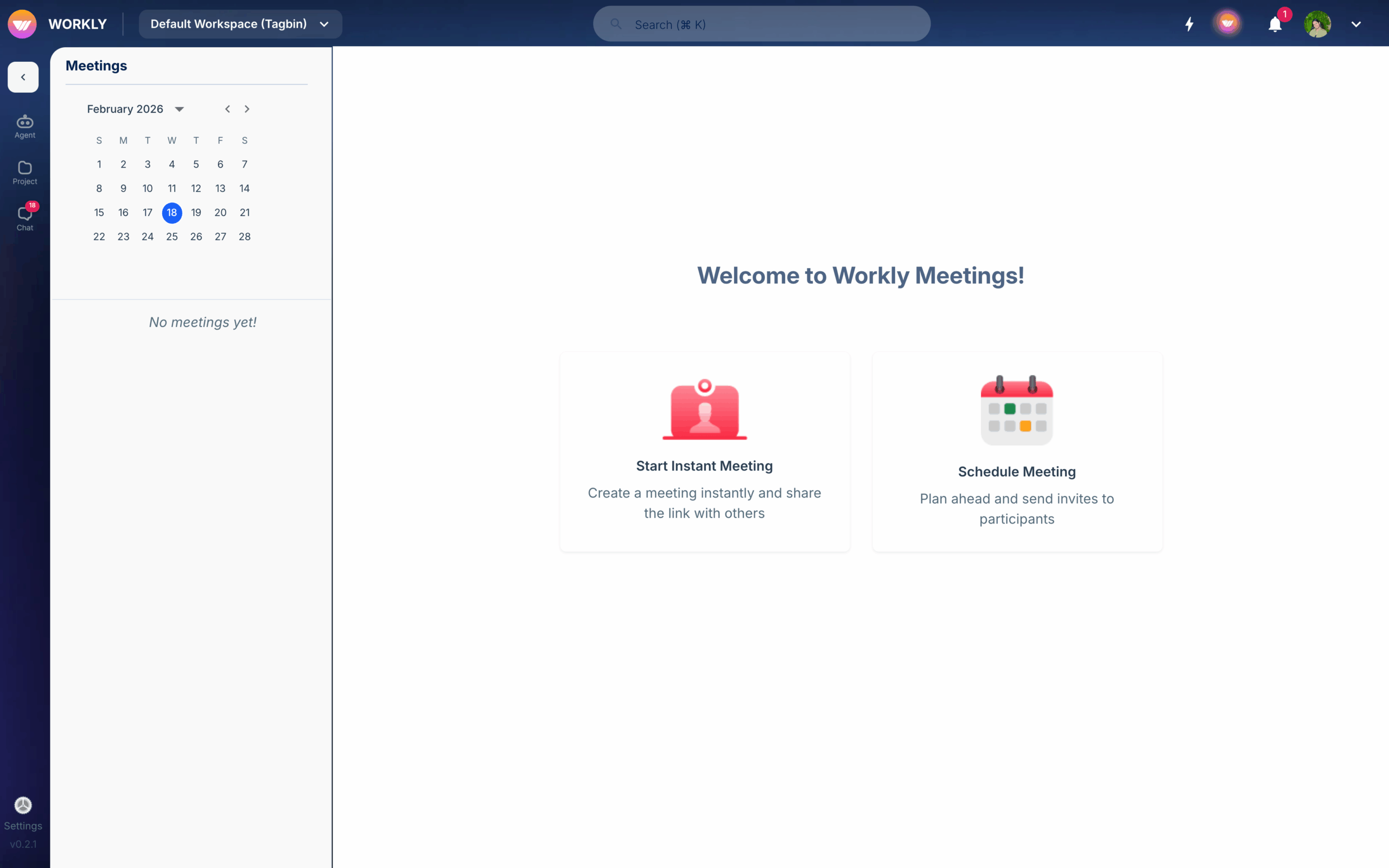
Start an instant meeting
To start a video call right away:
- Go to the Meetings page from the sidebar
- Click Start Meeting or New Meeting
- Your camera and microphone will activate and you’ll be placed in the call
- Share the meeting link with teammates to invite them to join
Instant meetings are useful for quick discussions, standups, or impromptu collaboration.
Schedule a meeting
To schedule a meeting for later:
- Go to the Meetings page
- Click Schedule Meeting
- Enter a meeting title
- Set the date and time
- Add participants by selecting workspace members
- Click Schedule
Scheduled meetings appear on your meetings list and participants receive notifications. If you have Google Calendar integrated, meetings also sync to your calendar.
During a meeting
While in a meeting, you have access to:
- Camera and microphone controls — Toggle your video and audio on or off
- Screen sharing — Share your entire screen or a specific window with participants
- Chat — Send text messages to participants during the call
- Participants list — See who’s in the meeting and manage participants
- Recording — Record the meeting for later review
Screen sharing
Click the Share Screen button during any meeting to share your screen. You can choose to share your entire screen, a specific application window, or a browser tab. Other participants will see your shared screen in real time.
Meeting recording and transcripts
Record your meetings by clicking the Record button. After the meeting ends, the recording is saved and accessible from the meetings page. Recordings can be reviewed by team members who attended or were invited to the meeting.
Public meeting links
Share a meeting link with people outside your workspace by generating a public meeting link. This allows external participants (clients, partners, or collaborators) to join the call without needing a Workly account.
Join a meeting
Join a scheduled or ongoing meeting by:
- Clicking Join on the meeting card in the Meetings page
- Clicking the meeting link shared with you
- Clicking the meeting notification
Explore other ways to collaborate in Workly: chat and messaging or projects and tasks.
Frequently asked questions
How do I start a video call in Workly?
Go to the Meetings page from the sidebar and click Start Meeting. Your camera and microphone will activate and you’ll be placed in the call. Share the meeting link with teammates to invite them to join.
Can I invite people outside my workspace to a meeting?
Yes, generate a public meeting link and share it with external participants. They can join the video call directly from their browser without needing a Workly account.
How do I record a meeting in Workly?
Click the Record button during any meeting to start recording. The recording is saved after the meeting ends and can be accessed from the Meetings page by anyone who was invited to the meeting.


